Groups
The Groups section organizes monitored resources into logical units associated with a site. A group can contain objects and other child groups, forming the infrastructure hierarchy that feeds dashboards and monitoring operations.
Opening the Groups Section
From the main navigation menu, go to Customers → Objects Repository → Groups.
The interface opens with a pre-filter dialog. Fill in one or more fields to narrow the search, then click APPLY.
| Filter field | Description |
|---|---|
| Name | Name of the group |
| Description | Optional description |
| Type | Operational domain (see Group Types below) |
| Site | Site the group belongs to |
| Virtual Domain | Administrative domain the group is scoped to |
| Status | Active or Disabled |
By default, the pre-filter is set to show only active groups. Leave other fields empty and click APPLY to load all active groups.
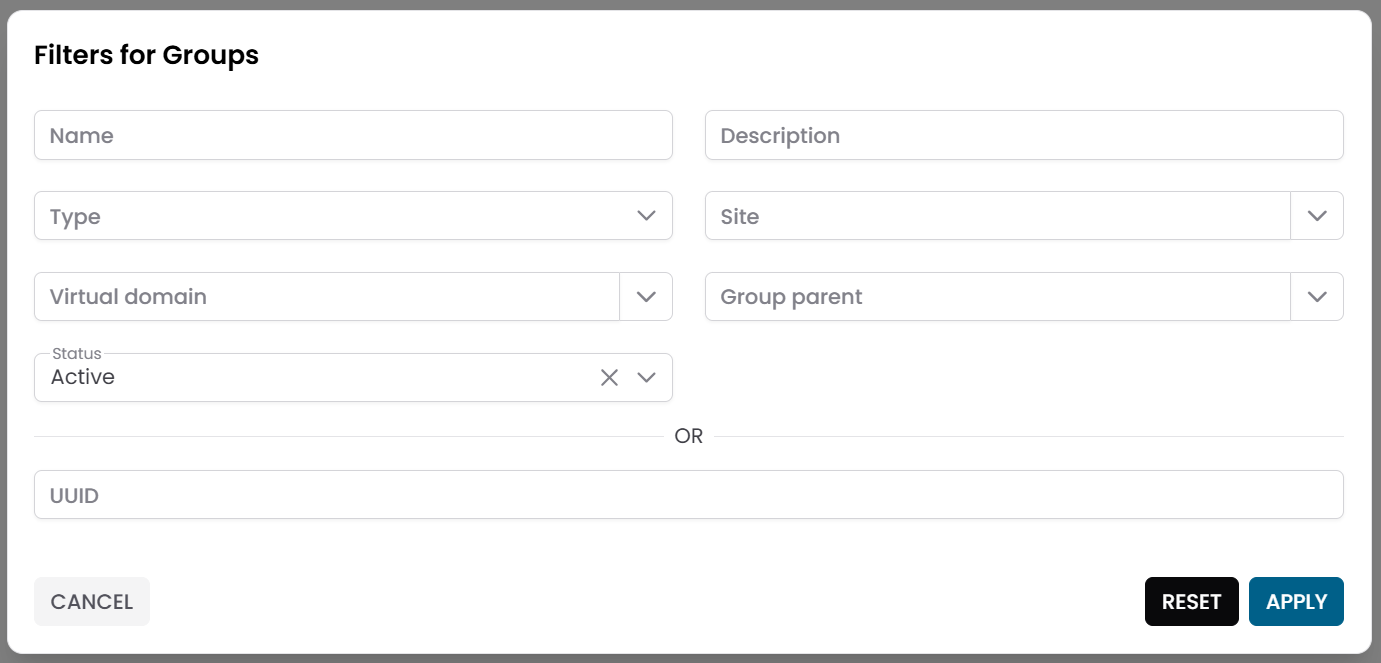
Fig.1 - Groups pre-filter dialog
Groups Table
After applying the filter, the results appear in a table where each row represents a group.
Typical columns include:
- Name
- Description
- Type
- Site
- Virtual Domain
- Status
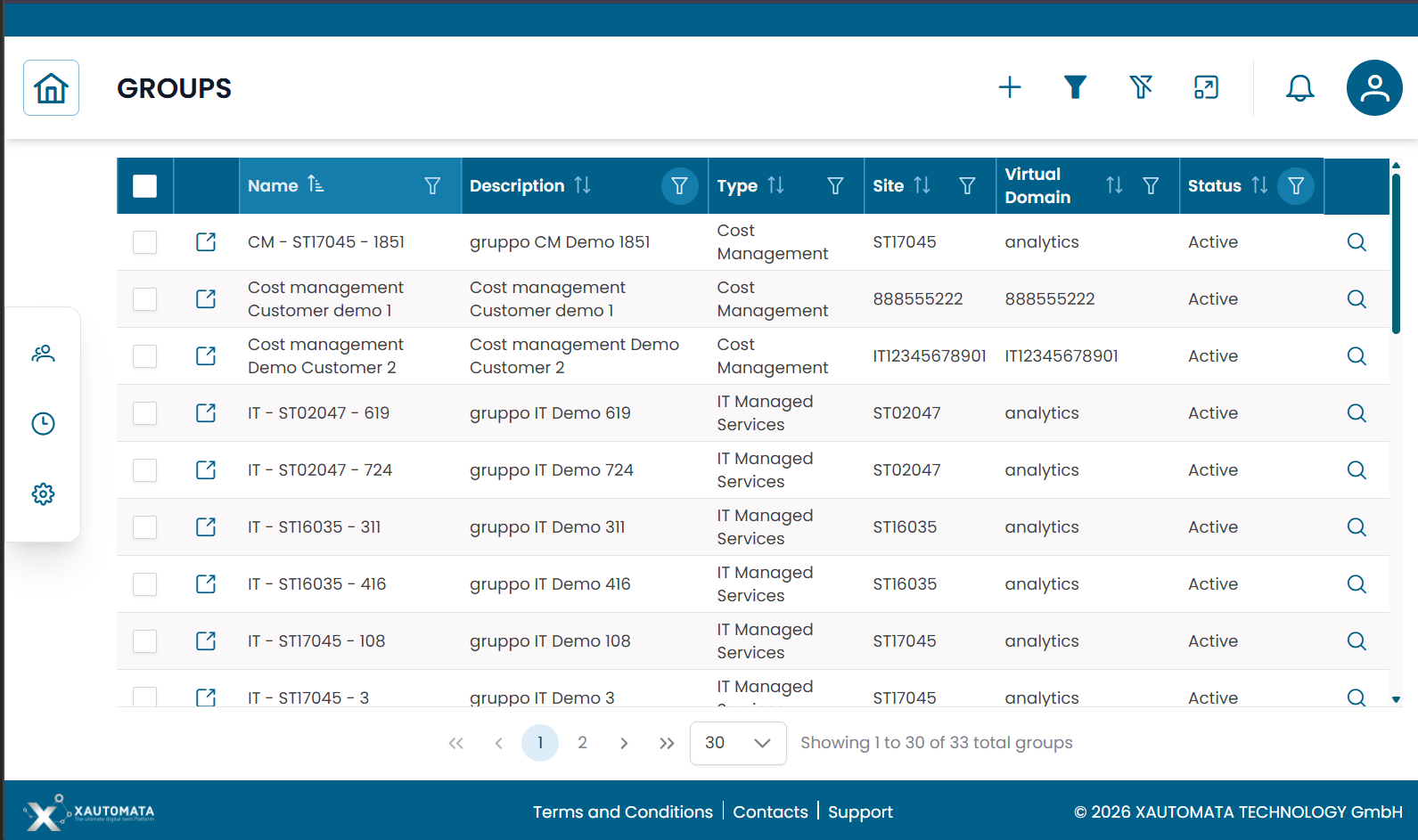
Fig.2 - Groups results table
Group Types
Each group is classified by a Type that identifies its operational domain:
| Type | Description |
|---|---|
| IT Managed Services | Groups related to server and application infrastructure |
| WAN Network | Groups related to network devices and connectivity |
| Cost Management | Groups used for cloud or infrastructure cost tracking |
| Real Estate Info | Groups related to physical locations and facilities |
| Physical Security | Groups related to physical security systems |
The type determines how the group fits into the overall infrastructure model and which kinds of objects it typically contains.
Group Details
Click the search icon (🔍) on any row to open the group record.
The CRUD dialog displays the full configuration of the group:
| Field | Description |
|---|---|
| Name | Name of the group |
| Description | Optional description |
| Type | Operational domain classification |
| Site | Site the group belongs to |
| Virtual Domain | Administrative domain |
| Group Parent | Parent group, if this is a child group |
| Automata Domain | Automation scope |
| Status | Active or Disabled |
From this dialog you can:
- edit the group information
- duplicate the record
- delete the record
Note
The Group Parent field is used when a group is nested inside another group. This allows you to model multi-level infrastructure hierarchies.
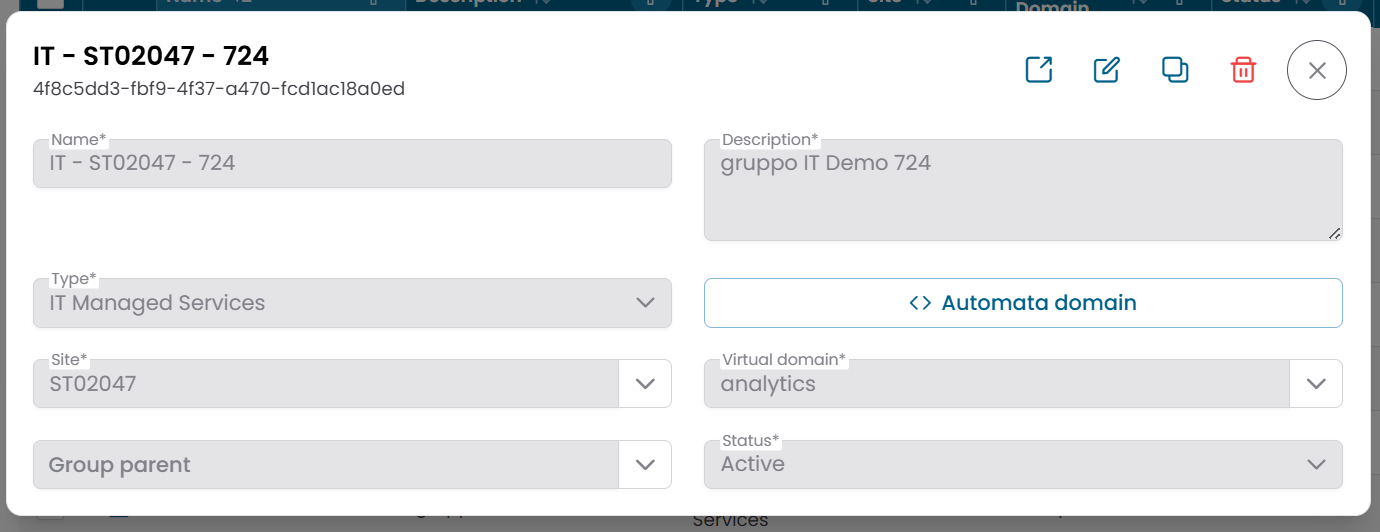
Fig.3 - Group detail dialog
Group Structure View
Click the link icon (🔗) on any row to open the Group Structure View.
The page is divided into two areas:
- a group information panel on the left
- a hierarchical navigation area on the right
The hierarchy displays the entities that descend from the selected group:
- Child groups (if any)
- Objects
- Metric Types
- Metrics
Use this view to navigate the full monitoring structure under the selected group, inspect metrics, and apply operational actions.
For a detailed explanation of how to use this view, see Tree Hierarchy View.
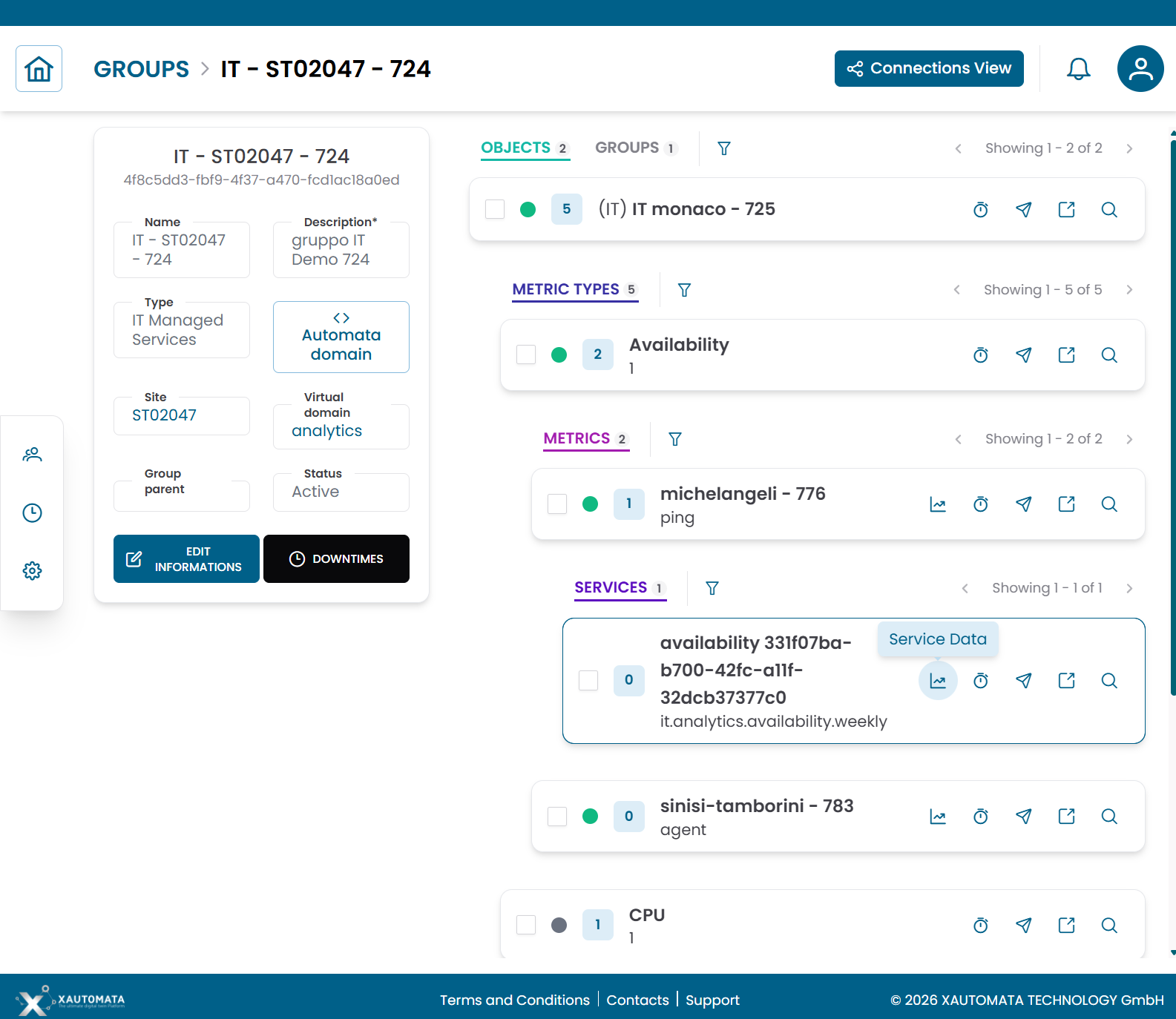
Fig.4 - Group structure view
Operational actions
From the hierarchy view you can apply the following actions to any element in the tree:
| Action | Description |
|---|---|
| Downtime | Temporarily suspend monitoring alerts for the selected element |
| Dispatcher | Configure an automated response triggered by a monitoring event |
Groups also support mass operations — select multiple elements in the tree and apply a single action to all of them at once:
- Massive Downtime
- Massive Dispatcher
Connections View
From the Group Structure View, click Connections to switch to the Connections View.
This view shows the entities linked to the group:
| Tab | Description |
|---|---|
| Objects | Monitored resources assigned to this group |
| Groups | Child groups nested inside this group |
| Users | Users associated with this group |
| Downtimes | Active downtime records linked to this group |
| Dispatchers | Active dispatchers linked to this group |
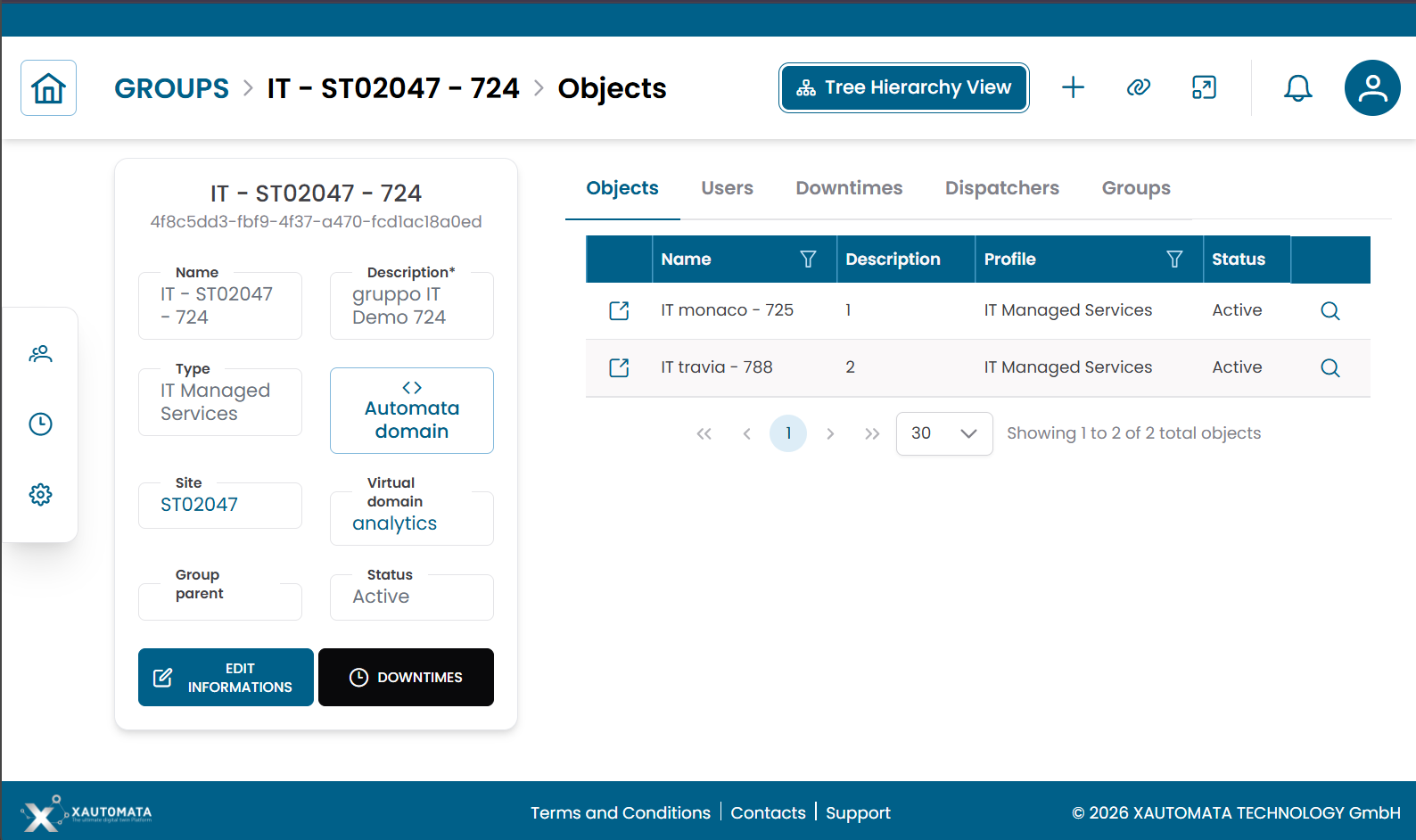
Fig.5 - Group connections view
Note
To manage the individual resources inside a group, see Objects. To understand how the hierarchy is navigated, see Tree Hierarchy View.