Setup — API Key
Arianna requires an Anthropic API key to function. The key is stored locally in your browser and never sent to Xautomata's servers — it is used exclusively for direct calls to the Claude API.
Entering the key
Click the Wand icon in the left sidebar to open the AI Assistant panel. If no key is configured, a prompt appears asking you to enter one.
Paste your Anthropic API key and press Confirm. The key is validated immediately; if the key is invalid or has insufficient permissions, an error message is shown.
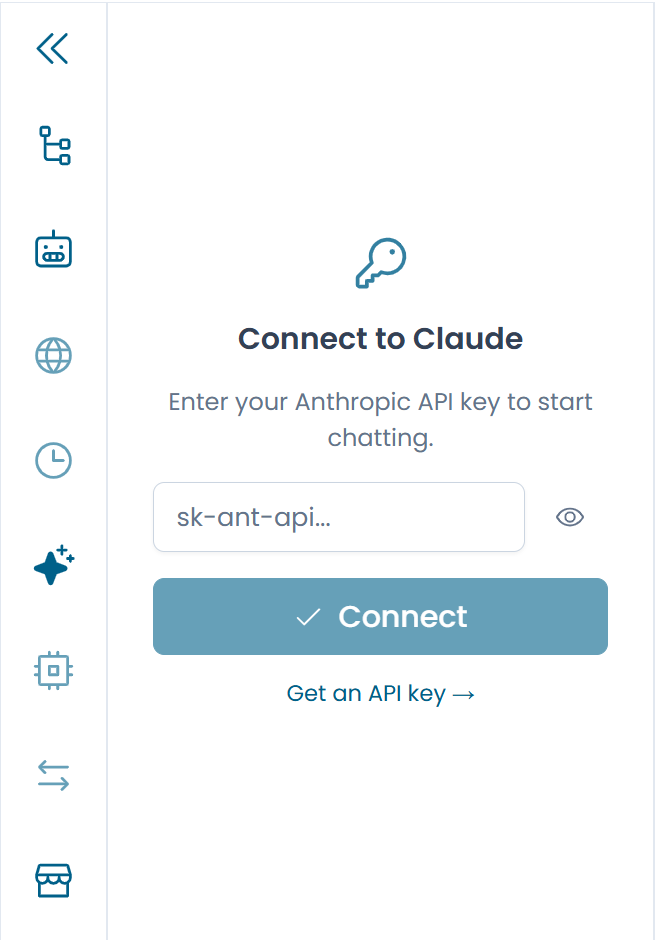
Fig.1 - The API key entry prompt
Removing the key
To clear the stored key — for example, when logging out of a shared machine — open the AI Assistant panel and click the key icon (Change API key). This logs you out of Arianna and removes all chat sessions linked to repository files. Sessions linked to locally uploaded files are preserved.
Key security
Your API key is stored in your browser's local storage. Do not use Arianna on a shared or public computer without removing the key when you are done.
Language
Arianna's response language is a global preference that applies to all chat sessions. It controls both the language Claude responds in and the UI text inside the chat panel (placeholders, empty-state labels, and call-to-action messages).
To change the language, click the flag icon in the chat header. A small popover appears with the available options — currently English (default) and Italian. Select one to apply it immediately; the preference is saved in a browser cookie and persists across sessions.
Note
The language setting is independent of the language you type in. Even if you write in Italian, Claude will respond in the language set here — and vice versa.