AI Assistant — Overview
Arianna is the AI assistant built into the XAL Designer. It helps you go from a natural-language description of a process to a valid, structured XAL file — and keeps the two artefacts in sync as either one evolves.
The file model
Understanding how Arianna organises its work is essential before using it. Three artefacts are always involved, and they are linked by design.
Chat session, scenario, and XAL file
Every chat session is tied to exactly one XAL file. The session remembers the conversation history, the generated scenario, and the last XAL it produced. This link is permanent for the lifetime of the session: the chat always works on that file, regardless of which tab is active in the editor.
The scenario is the structured natural-language description of the automaton — the intermediate artefact between your intent and the XAL. It lives in a dedicated .scenario.md file that Arianna creates automatically.
The three artefacts form a triad:
patch_oracle.xal            ← the automaton file
patch_oracle.scenario.md    ← the scenario (satellite, same base name)
                            ← the chat session (linked to patch_oracle.xal)
One session per file
Two chat sessions cannot be linked to the same XAL file at the same time. If you open a chat for a file that already has one, the existing session is reactivated.
The satellite file
The scenario file is a satellite of the XAL file: it always lives in the same directory and shares the same base name, with a .scenario.md extension instead of .xal. This co-location is structural — the link between the two is never stored explicitly; it is derived from the path.
The scenario file can exist before the XAL file (Arianna creates it as soon as the scenario is ready), but it can never exist in a different directory. Moving or renaming the XAL file requires updating the scenario file path accordingly.
One scenario tab at a time
The editor allows only one scenario tab open at a time. This is intentional: the scenario tab and the active chat session are always in sync, and having multiple scenario tabs open simultaneously would break that contract. If you switch to a different chat session, the current scenario tab is closed and the new session's scenario (if any) is opened in its place.
Opening a chat session
To link a chat session to an XAL file, right-click the file in the Repository Explorer.
The context menu entry changes depending on whether a session already exists for that file:
| Entry | Condition | Effect |
|---|---|---|
| Open chat | A session already exists for this file | Switches the active session to this file; opens the scenario tab if a scenario is present |
| New chat | No session exists for this file | Creates a new session linked to this file; the session title is pre-filled with the file name |
The same entries are available on .scenario.md files — both the scenario and the XAL share the same session.
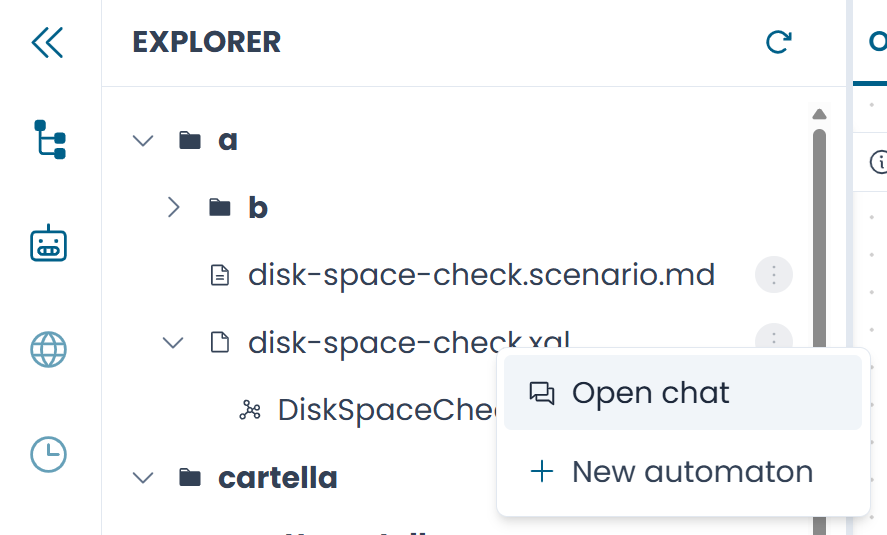
Fig.1 - The "Open chat" entry in the Repository Explorer context menu
The scenario tab
When Arianna generates a scenario, the Designer opens a scenario tab in the editor. It displays the structured scenario in rendered Markdown and exposes the one-shot action buttons — Generate XAL, Verify Consistency, and Sync Scenario — directly below the content area.
The Focus button
The scenario tab header includes a Focus button. Clicking it:
- Closes all tabs belonging to other XAL files
- Opens all automata defined in the linked XAL file
Use Focus when you want to concentrate the workspace on a single file — for example, after switching between several automata and wanting a clean view of the one you are currently working on.
Note
Focus is only available in the scenario tab header, not in the context menu. If the scenario is in edit mode with unsaved changes, Focus is blocked until the changes are saved or discarded.
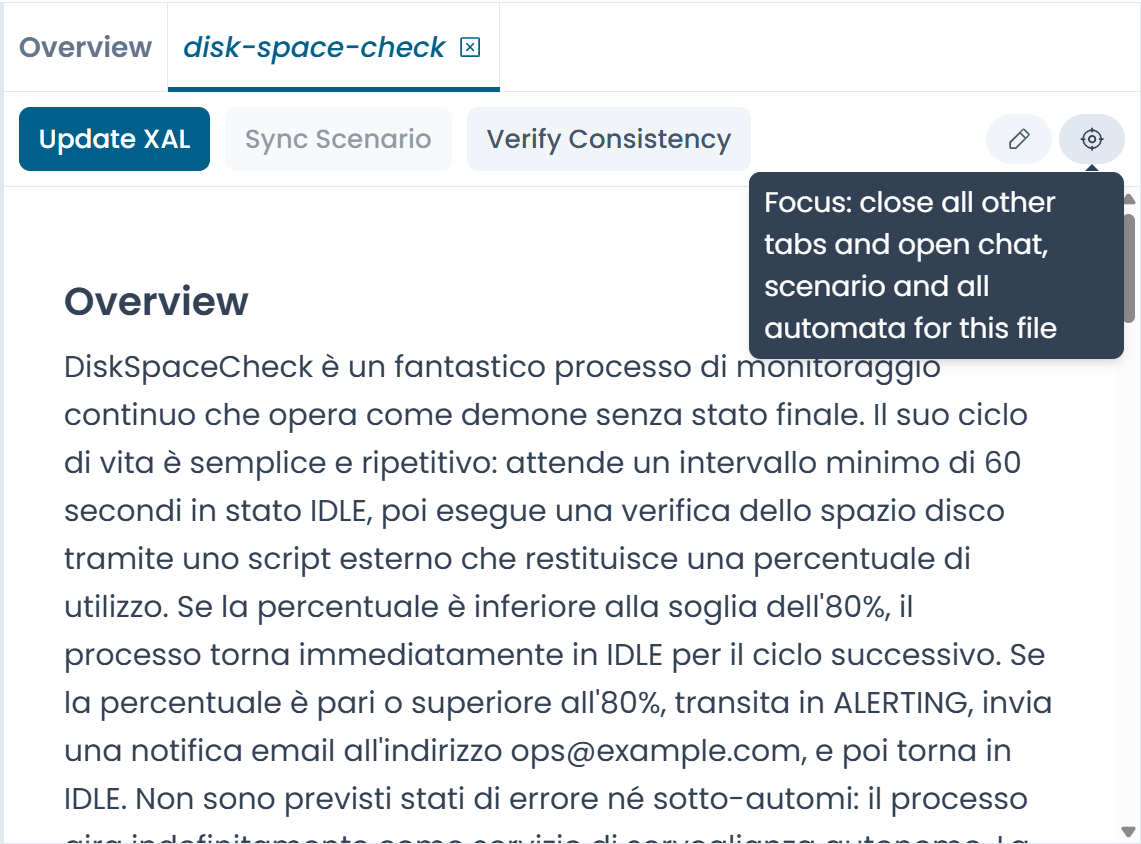
Fig.2 - The scenario tab. The Focus button is in the top-right corner of the tab header
What Arianna can do
Once a chat session is open, Arianna can help you with the following tasks. Each is covered in a dedicated page.
| Task | When to use |
|---|---|
| Generating a Scenario | You have a natural-language description and want to produce a structured scenario |
| Generating XAL | A scenario is ready and you want to generate the XAL file |
| Updating XAL | The scenario has changed and you want to propagate the changes to the existing XAL |
| Syncing the Scenario | You have edited the XAL manually and want to update the scenario to match |
| Verifying Consistency | You want to check that scenario and XAL are semantically aligned |
| Generate Scenario from XAL | You have an existing XAL file with no scenario and want to reconstruct one |
| Chat Sessions | Managing multiple sessions, skills, and guided flows |